Difference between revisions of "Keyboard Testing"
Jump to navigation
Jump to search
| Line 107: | Line 107: | ||
This is a USB keyboard connector. | This is a USB keyboard connector. | ||
| − | ==Keyboard Testing== | + | ==Mac Keyboards== |
| + | |||
| + | The ⏏ (Eject) button for all Macintosh or Apple keyboards is located on the upper right-hand corner of the keyboard, as shown below. | ||
| + | |||
| + | <gallery perrow=3 widths=375px caption="These keyboards make the Cut"> | ||
| + | |||
| + | Image:Apple Keyboard A2.png | ||
| + | Image:Apple Keyboard A1.png | ||
| + | Image:Apple Keyboard A.png | ||
| + | |||
| + | </gallery> | ||
| + | |||
| + | Older Mac keyboards do not have this button; an example USB keyboard is shown here: | ||
| + | |||
| + | [[Image:Apple Keyboard B.png|center||thumb|375px|Note the absence of the eject key on the upper right-hand corner]] | ||
| + | |||
| + | ==Testing Instructions== | ||
* Turn the computer on. | * Turn the computer on. | ||
| Line 122: | Line 138: | ||
** Put the cord in the metal shopping cart in the main receiving room. | ** Put the cord in the metal shopping cart in the main receiving room. | ||
** Put keyboards in the shopping cart closest to you. | ** Put keyboards in the shopping cart closest to you. | ||
| − | *** When | + | *** When a cart gets full, notify a staff member. |
* When you have finished testing a keyboard, hit "Reset" to reset the image in the program. | * When you have finished testing a keyboard, hit "Reset" to reset the image in the program. | ||
*Place working keyboards in the appropriate boxes. | *Place working keyboards in the appropriate boxes. | ||
| Line 132: | Line 148: | ||
The [[Finer Points of Keyboard Sorting]] | The [[Finer Points of Keyboard Sorting]] | ||
| − | |||
| − | |||
| − | |||
| − | |||
| − | |||
| − | |||
| − | |||
| − | |||
| − | |||
| − | |||
| − | |||
| − | |||
| − | |||
[[Category:Hardware Testing]] | [[Category:Hardware Testing]] | ||
[[Category:Howto]] | [[Category:Howto]] | ||
Revision as of 00:28, 2 June 2010
Testing Keyboards
Keyboards are tested for functionality. The good ones are then distributed throughout the facility.
The bad ones are recycled.
 This is a PS2 keyboard connector.
 This is a USB keyboard connector.
Mac Keyboards
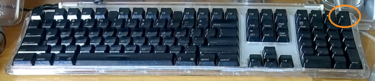
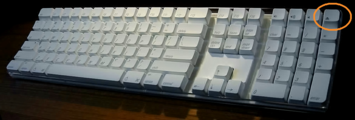
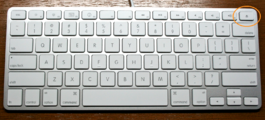
The ⏏ (Eject) button for all Macintosh or Apple keyboards is located on the upper right-hand corner of the keyboard, as shown below.
- These keyboards make the Cut


Older Mac keyboards do not have this button; an example USB keyboard is shown here:

Testing Instructions
- Turn the computer on.
- Connect the keyboard to the system using the extender on the right, or the USB port in front.
- To test a Macintosh or Apple keyboard, select the "Apple Layout".
- To test standard keyboards, select the standard "104-key Layout".
- Select CONTINUE.
- Go through and test every key.
- You will see on the screen what looks like a keyboard. Press a key on your keyboard.
- If the corresponding key on the screen turns black, it works.
- If the key does nothing, it does not work.
- If any keys do not work, RECYCLE the keyboard.
- When you have determined that a keyboard does not work, cut off the cord.
- Put the cord in the metal shopping cart in the main receiving room.
- Put keyboards in the shopping cart closest to you.
- When a cart gets full, notify a staff member.
- When you have finished testing a keyboard, hit "Reset" to reset the image in the program.
- Place working keyboards in the appropriate boxes.
- When a box gets full, ask a staff member where it goes.
- Plug in a new keyboard and start all over!