Keyboard Testing
Jump to navigation
Jump to search
The printable version is no longer supported and may have rendering errors. Please update your browser bookmarks and please use the default browser print function instead.
 This page has been migrated to a document on Free Geek's Google Drive. Information remaining behind may no longer be relevant. MIGRATOR: When you have tagged this page as migrated, (Link to new page immediately below.) |
Testing Keyboards
Keyboards are tested for functionality. The good ones are then distributed throughout the facility.
The bad ones are recycled.
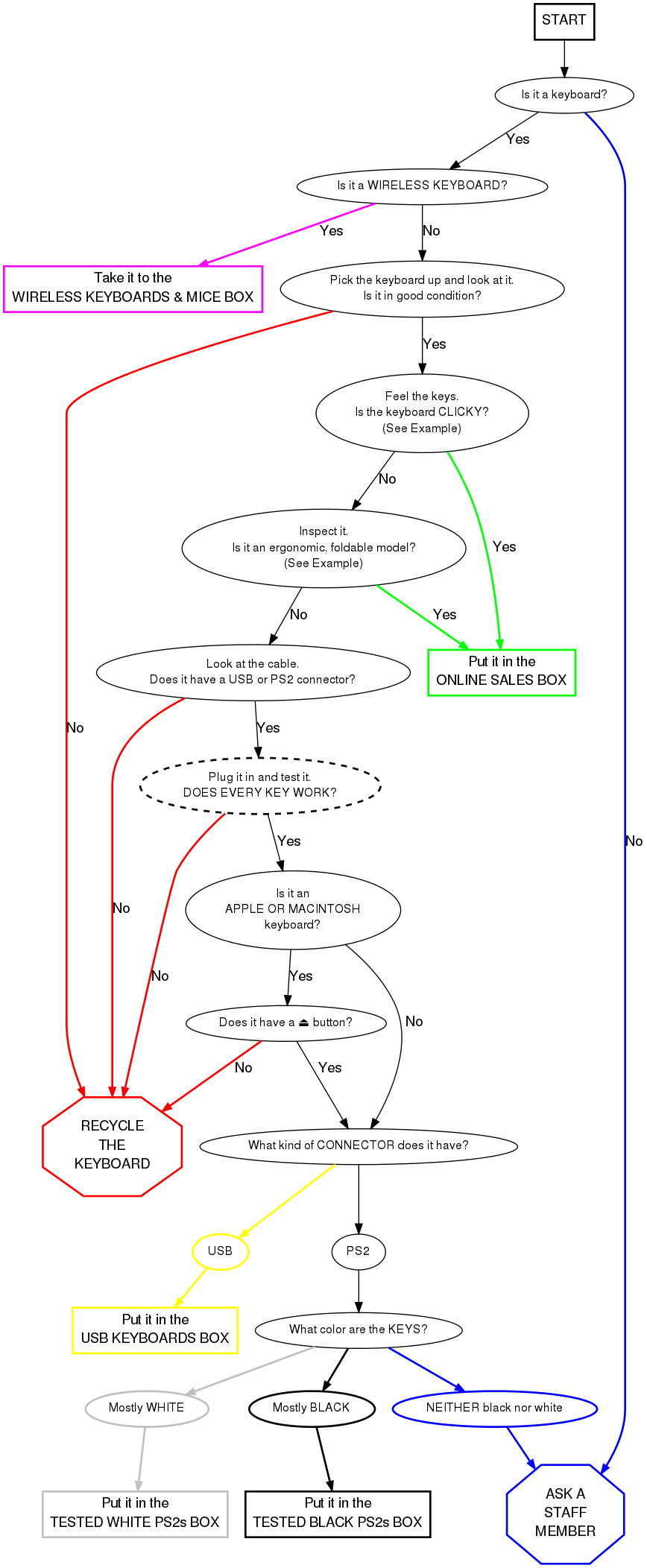


Mac Keyboards
The ⏏ (Eject) button for all Macintosh or Apple keyboards is located on the upper right-hand corner of the keyboard, as shown below.


Older Mac keyboards do not have this button; an example USB keyboard is shown here:

Testing Instructions
- Turn the computer on.
- Connect the keyboard to the system using the extender on the right, or the USB port in front.
- To test a Macintosh or Apple keyboard, select the "Apple Layout".
- To test standard keyboards, select the standard "104-key Layout".
- Select CONTINUE.
- Go through and test every key.
- You will see on the screen what looks like a keyboard. Press a key on your keyboard.
- If the corresponding key on the screen turns black, it works.
- If the key does nothing, it does not work.
- If any keys do not work, RECYCLE the keyboard.
- When you have determined that a keyboard does not work, cut off the cord.
- Put the cord in the metal shopping cart in the main receiving room.
- Put keyboards in the shopping cart closest to you.
- When a cart gets full, notify a staff member.
- When you have finished testing a keyboard, hit "Reset" to reset the image in the program.
- Place working keyboards in the appropriate boxes.
- When a box gets full, ask a staff member where it goes.
- Plug in a new keyboard and start all over!