Difference between revisions of "Getting the Processor Information"
Jump to navigation
Jump to search
| Line 79: | Line 79: | ||
* Is the power switch on the back of the power supply on? | * Is the power switch on the back of the power supply on? | ||
* Is the power supply plugged into the motherboard? | * Is the power supply plugged into the motherboard? | ||
| + | ** '''Some motherboards have a 4 pin connector (as well as the 20 or 24 pin connector). Make sure that this is also plugged in properly.''' | ||
* Is the power switch connected to the motherboard? | * Is the power switch connected to the motherboard? | ||
Revision as of 14:49, 4 August 2010
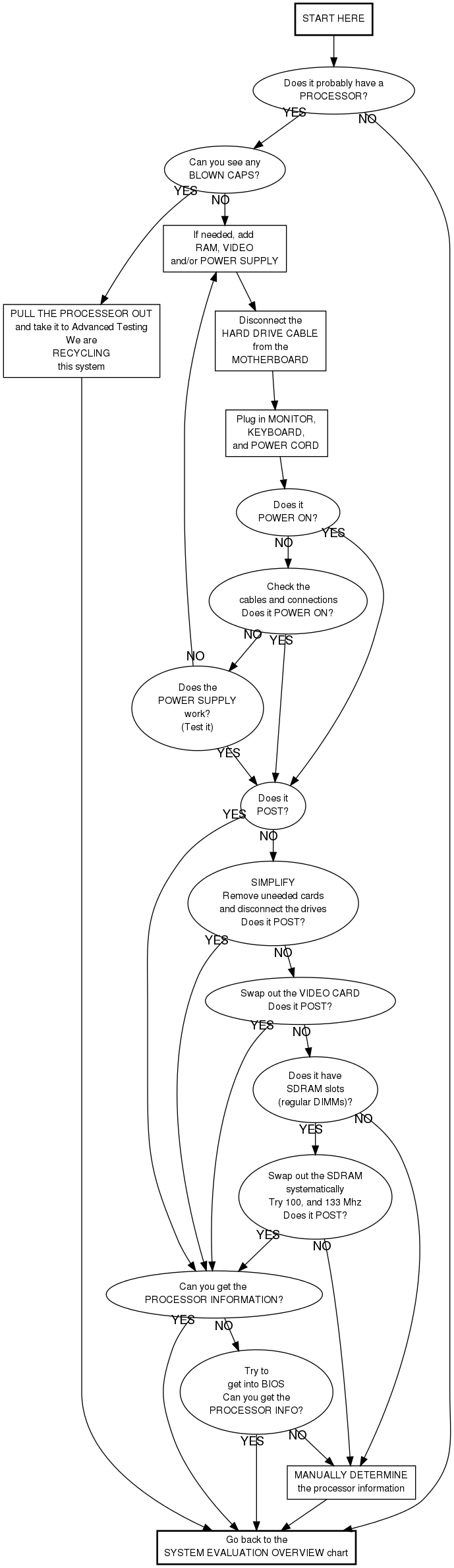
GREEN Chart
Checking the Cables and Connections
- Is the power strip on?
- Is the computer plugged into the power strip?
- Is the power switch on the back of the power supply on?
- Is the power supply plugged into the motherboard?
- Some motherboards have a 4 pin connector (as well as the 20 or 24 pin connector). Make sure that this is also plugged in properly.
- Is the power switch connected to the motherboard?
Manually determining the processor information
This is your last resort option. Do not do this unless the instructions told you to.
- See if you can see the speed without removing anything
- Remove the heat sink/fan only if necessary
- You may need a magnifying glass. (See instructor.)